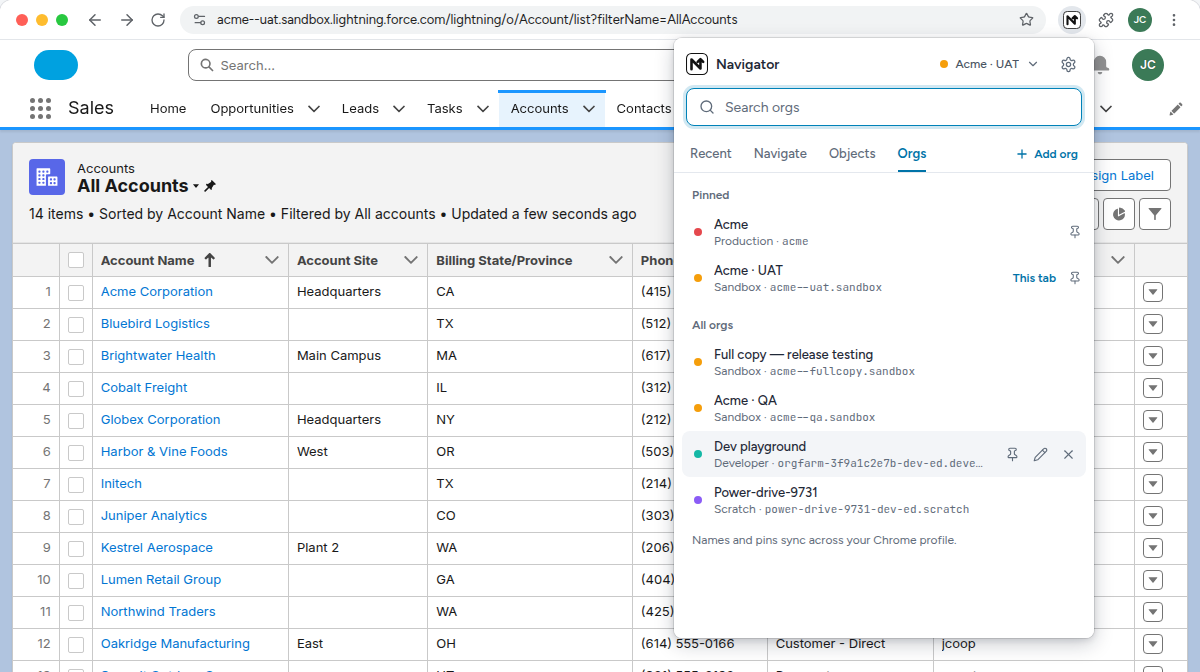
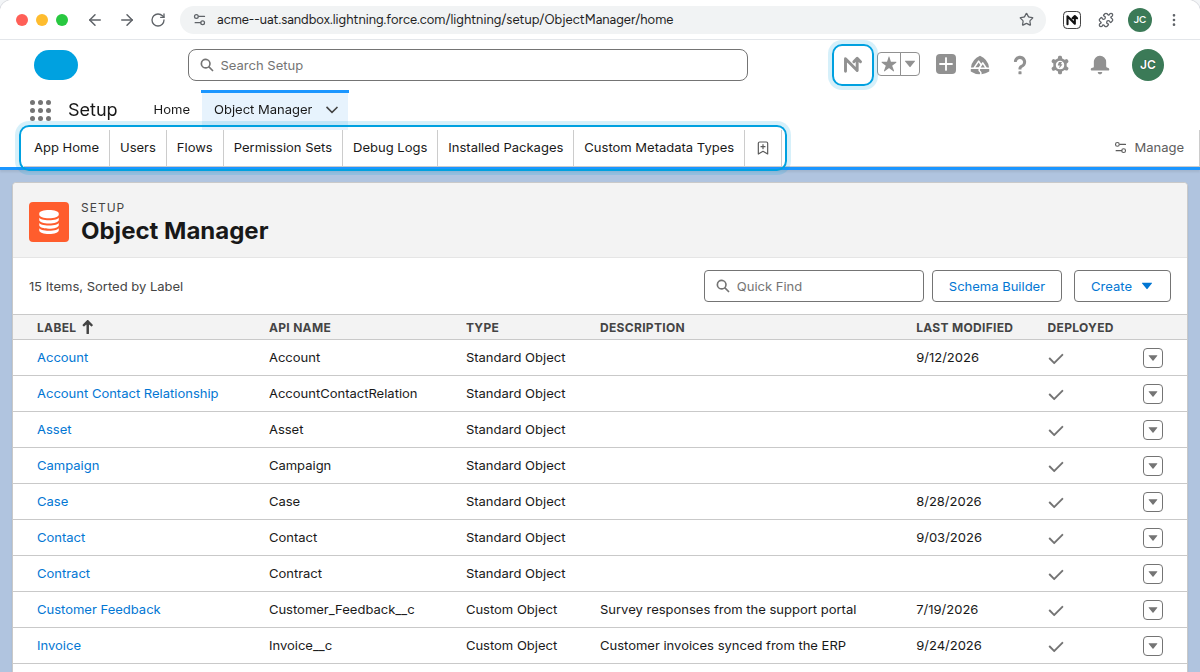
Navigator puts one search box on top of Salesforce. Open any Setup page, object, field, record, app or org in a few keystrokes, from any Salesforce page.
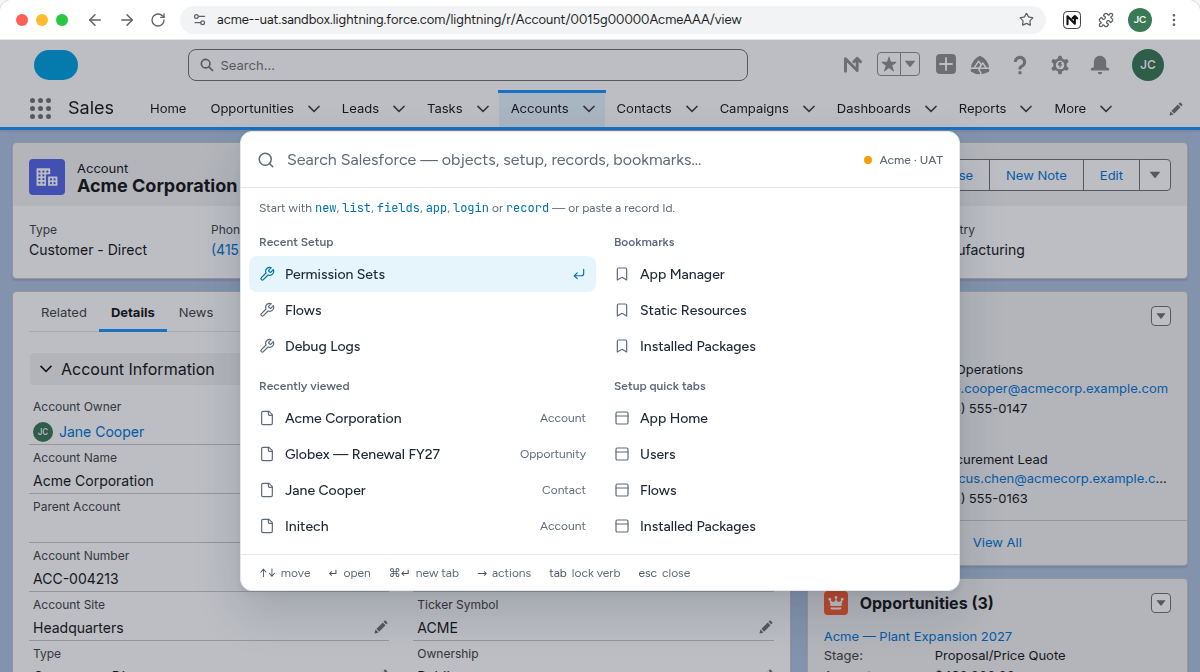
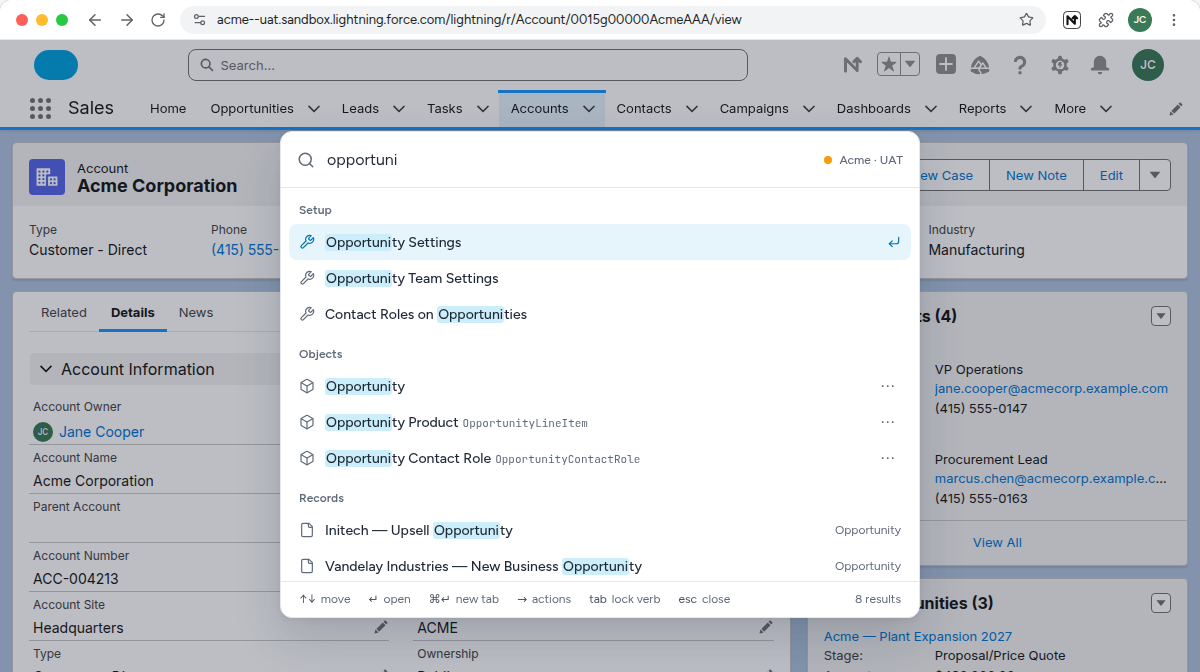
↑↓ move↵ openCtrl+↵ / ⌘↵ new tab→ actionsesc close8 results
400+
Setup pages you can open by name
7
commands: new list fields app org login record
12
tab colors, so every org looks different
0
analytics, ads or accounts
›one search box
Type what you want. Navigator knows where it lives.
Results are ranked by how well the name matches, so the page you meant comes first. Start with a command to narrow it down.
perm
Permission SetsSetup
Any of 400+ Setup pages, from a few letters.
acme
Acme CorporationAccount
Records, users, objects, profiles, permission sets, flows and apps, by name.
new case
New CaseRecord
Create a record of any object without hunting for its tab.
list lead
LeadsList view
Jump straight to any object’s list view.
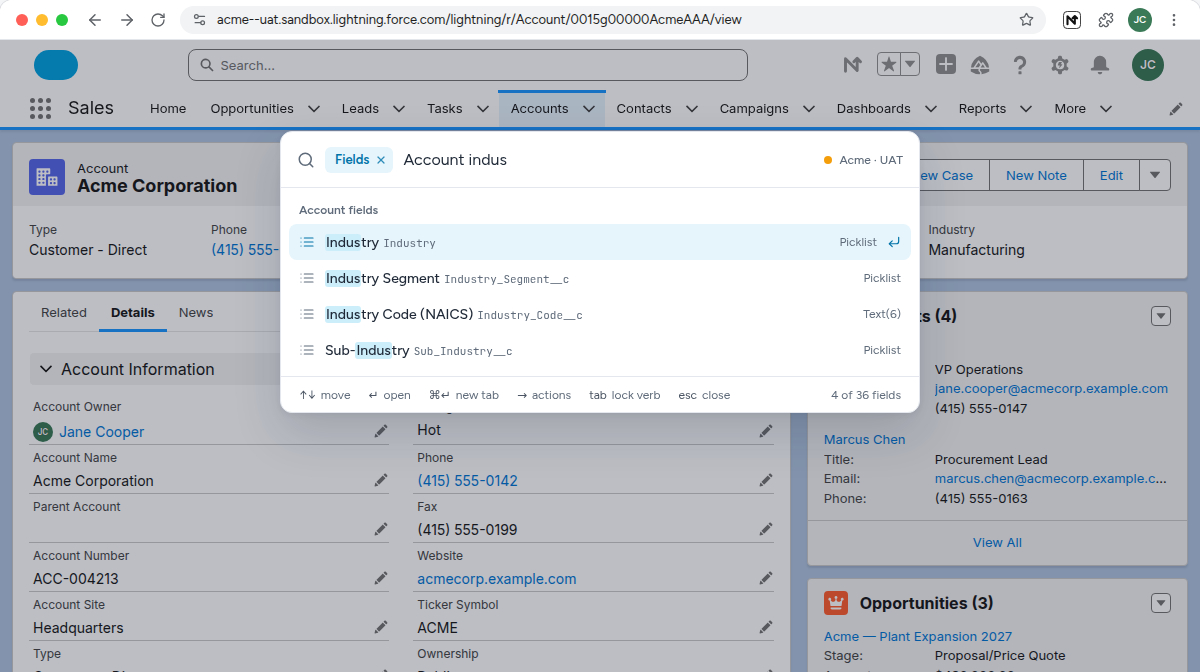
fields account indus
IndustryPicklist
Open any field’s Setup page, without Object Manager.
app service
Service ConsoleApp
Open any Lightning app. Type app alone to see them all.
invoice
InvoiceServiceApex class
Apex classes, triggers and custom metadata types, by name.
record
Acme Corporation36 fields
This record’s field values with API names. Copy the Id or the JSON.
org uat
Acme · UATSandbox
Open a saved org, or press → to open this same page there.
login jane
Jane CooperLog in as
Log in as another user, when you’re allowed to.
0015g00000AcmeQAAR
Acme CorporationAccount
Paste a 15- or 18-character record Id to open it.
Then press
↵
Open it
Ctrl+↵⌘↵
Open it in a new tab
→
More actions, like Login as
tab
Lock the command
›see it in action
Built into the Salesforce you already use.
A palette on every Salesforce page, a popup in your toolbar, and your own quick tabs in Setup. Nothing new to learn, nothing to sign in to.
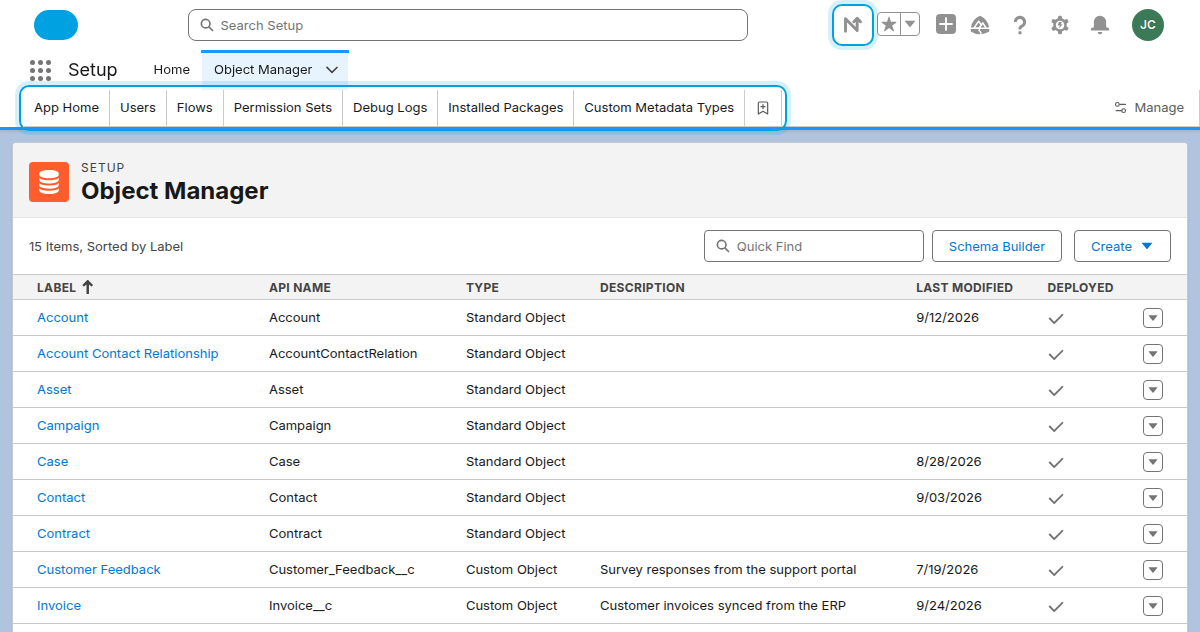
Press Alt+K (⌥K on a Mac) on any Salesforce page. Recent Setup pages, records, bookmarks and quick tabs are one keystroke away.
New in 5.1
Never mistake production for a sandbox.
Every saved org’s browser tabs get a Salesforce cloud in that org’s own color, with its initial. Production gets red, and its initial sits in a circle.
Off by default. Turn it on in Settings › Orgs › Color browser tabs by org
Light tab strip
Setup Home | Salesforce
Acme Corporation | Account
Flows | Salesforce
Apex Classes | Salesforce
Users | Salesforce
Dark tab strip
Setup Home | Salesforce
Acme Corporation | Account
Flows | Salesforce
Apex Classes | Salesforce
Users | Salesforce
Up close
AcmeProduction
Acme · UATSandbox
Acme · QASandbox
Dev playgroundDeveloper
Full copySandbox
Pick any of 12 colors per org
Gold
Purple
Teal
Black
Blue
Pink
Green
Red
Grey
Brown
Orange
Sky
Production stands out
Production orgs get red first, with the initial in a circle. Red is never handed to a sandbox on its own.
Readable in light and dark
Each color has a shade for Chrome’s light and dark tab strips, and the first ones stay distinct for color-blind eyes too.
The same everywhere
The popup and the palette use the same colors, and open tabs update the moment you change one.
›and the little things
Small touches that add up every day.
Every one of them can be switched on or off in Settings.
Every field, with its API name
Type record on any record page to see its field values, with labels and API names, ready to copy.
Yes. It’s free and open source under the MIT license. There’s no account to create and nothing to upgrade.
Can it change anything in my org?
No. Every request Navigator makes to Salesforce only reads data. It never creates, changes or deletes anything.
Does any of my data leave my browser?
No. Navigator talks only to the Salesforce org you’re logged in to, using the session you already have. There are no analytics, no ads and no accounts.
I use Salesforce Easy Navigator. Is this the same extension?
Yes. Navigator used to be called Salesforce Easy Navigator. Version 5.0 updated it in place under the new name, so there’s nothing to reinstall.
What are the shortcuts on Windows and on a Mac?
The same letters on both. On Windows and Linux press Alt: Alt+K for the palette, Alt+N for the popup, Alt+S for Setup and Alt+A for Home. On a Mac press Option (⌥) instead: ⌥K, ⌥N, ⌥S and ⌥A.
A shortcut doesn’t work. What can I do?
Chrome skips a default shortcut that another extension already uses. Set your own at chrome://extensions/shortcuts.
Can I stop it from loading data from my org?
Yes. Switch off Load data from your org in Settings, and Navigator makes no Salesforce API requests at all.